
A practical guide · 5 steps
How to make a travel scrapbook from phone photos
Start with one small story from the trip. Choose a few photos, add the words the pictures cannot tell, and keep them together in a digital scrapbook.
Start with your photosCore journal and photo steps are free in Journily. Full PDF albums require Premium.
You can use the photo-selection and writing ideas below in any notebook or journal. The app instructions demonstrate Journily: a travel chapter for the trip, photos with captions, and journal entries for the longer memories.
The example is Lisbon weekend – Demo, a fictional trip from 12–14 June 2026. The photographs are licensed stock images, not customer memories. Screens show the actual app in isolated demonstration builds; the iPhone capture uses a simulator. No AI recap is shown. Photo credits.
Step 1 · Before you open the app
Choose one small story
Pick one day, one stop or one feeling you want to remember. Set aside near-duplicates and choose pictures that each add something. A useful starting set is a scene, a detail and a closing moment.
For this fictional Lisbon weekend, three images give the story a beginning, a pause and an ending:
The tram
A street scene to introduce the place.
The rooftops
A quieter view to change the pace.
The bridge
A final view of the water to close the trip.
You do not need to organise every holiday photo first. Find the few you want to keep together, and add others later if they help the story. Keep the originals in your own photo library too.
Step 2 · Give the memories a home
Create one travel chapter
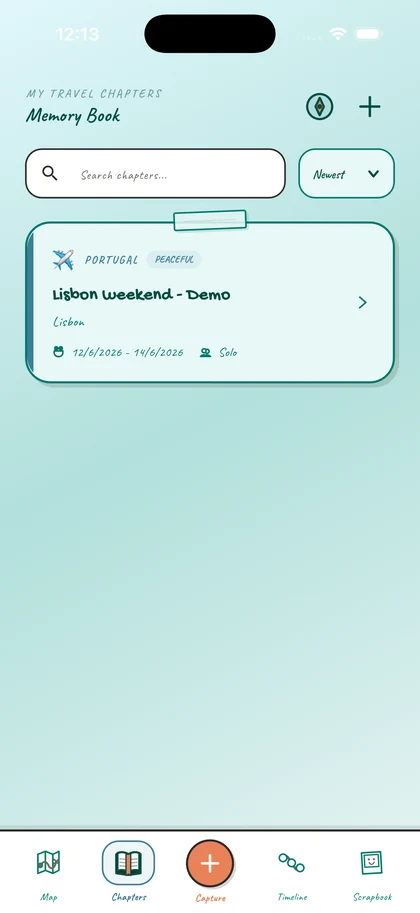
In Journily, open Chapters and tap +. Enter a title, country and trip dates, then choose Create Travel Chapter. Open the saved chapter to add its memories.
Use a title you will recognise later, such as the destination and a short trip description. The demonstration’s title is “Lisbon weekend – Demo”; your chapter should describe your own trip.
The screen beside this step shows the saved chapter in the Memory Book.
For installation requirements and more platform screenshots, see Journily on iPhone or Journily on Android.
Step 3 · Add what the picture cannot say
Pin the photos and write their captions
- Inside the chapter, open Photos and tap Pin Photo.
- Choose From Gallery and select the pictures from your phone. Allow the photo access your device asks for.
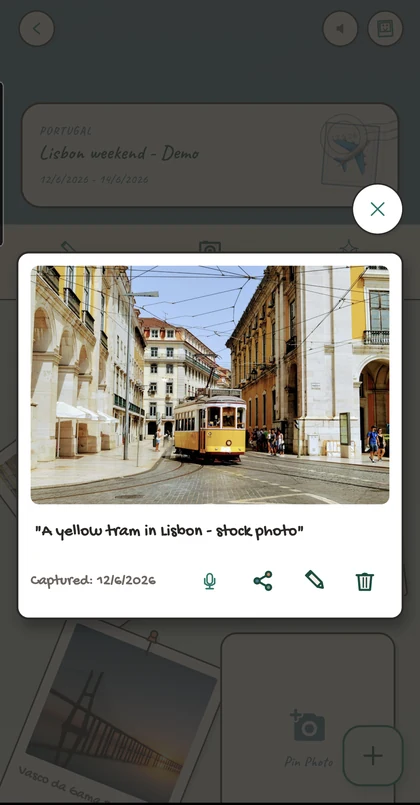
- Open a saved photo and tap the pencil icon labelled Edit Caption.
- Write a short caption in Edit Polaroid Caption, then choose Save.
Give the reader something beyond the visible object: why you stopped, what happened just before, or what you want to remember. If a detail is uncertain, keep the words honest rather than filling the gap.
Journily keeps an app copy of selected images. Photos and captions belong to the chapter, while longer reflections can go in its journal.
Step 4 · Join the moments together
Write a few lines you will want to reread
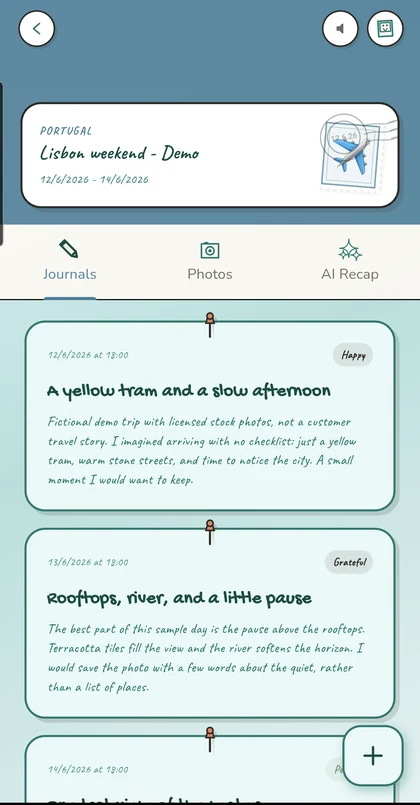
Open the chapter’s Journals tab, tap +, write the memory and choose a mood. Tap Preserve Memory to save it.
A caption can name one moment; the journal can explain how the day felt. In the fictional demo, the rooftop entry describes the pause above the city rather than listing every stop. The final entry uses the bridge and water as a place to end the story.
Try a short note with three parts: what happened, one detail you noticed, and why you chose to keep it. It does not need to sound like a guidebook.
For a starting sentence or a question to write from, use the travel journal examples and prompts guide.
You can write the entries and captions yourself. An AI recap is optional; online AI and cloud backup have separate data flows described in the privacy and storage guide.
Step 5 · See the result
Keep the scrapbook or export an album
Revisit the chapter in the app, or tap the scrapbook export icon in the trip’s top-right toolbar to generate a PDF. The device share sheet then lets you choose an available destination for the file.
Free access creates a preview: one journal entry and up to four photos, without an AI recap. Premium creates the full trip album. Available plans and local prices are shown in the app before purchase.
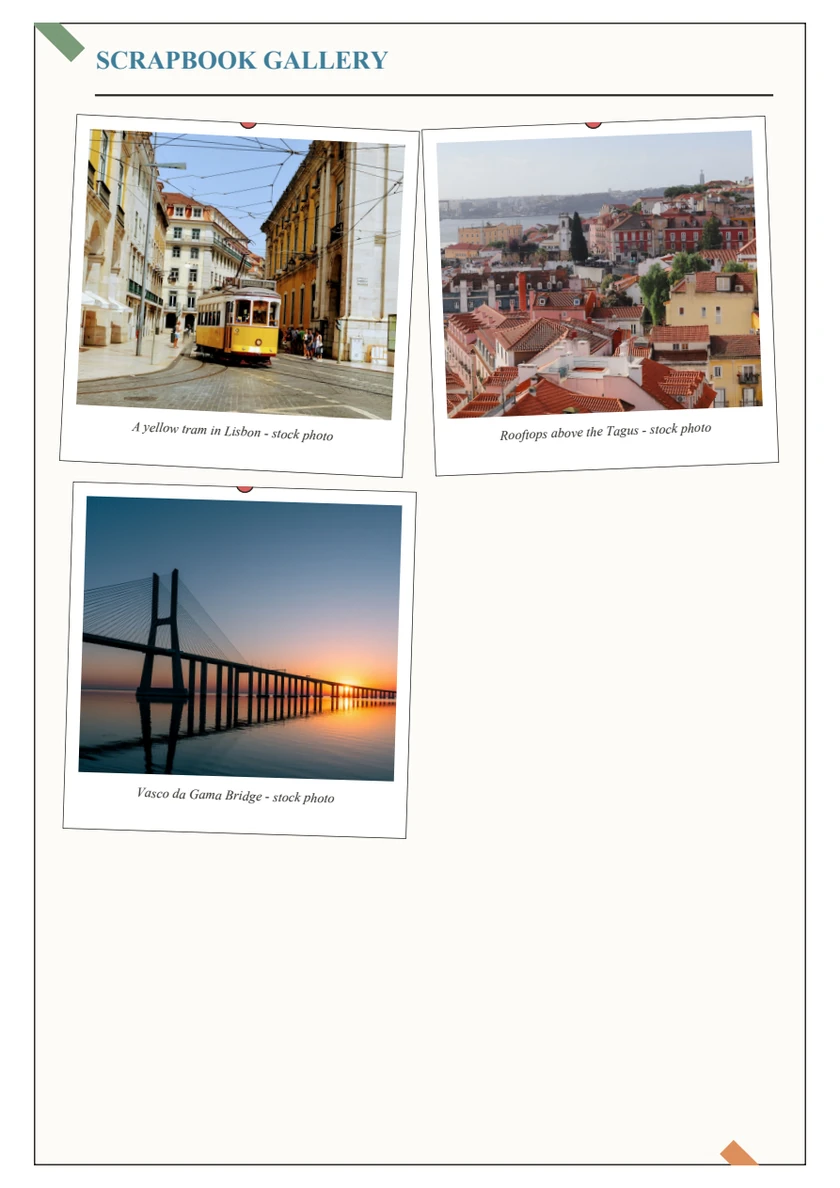
The Lisbon example has three entries and three photos. Its public download is the full Premium sample; the photo-gallery page beside this step is part of that unchanged export.
Open the Premium sample PDFPDF · 3 pages · 1.1 MB · Fictional demo with stock photos
For every sample page, save destinations and test-print instructions, use the printable travel journal album guide. Journily exports a digital file; printing and physical delivery are separate.
The in-app scrapbook and PDF have their own layouts. Review the export before printing. A PDF is a readable keepsake, not a restorable app backup.
Before you call it finished
Read it once as a future memory
- Does each photo add something, or are several telling the same part?
- Will the captions make sense when the trip is less fresh?
- Have you separated remembered details from things you are unsure about?
- If you exported, did you check the PDF pages and save a copy you can find?
A small finished chapter is enough. You can return later to add another day or another photo.
Questions
Before you start your scrapbook
How many photos do I need to start a travel scrapbook?
Start with a small group that tells one part of the trip. This guide uses three photos: a tram, rooftops and a final river view. Three is a starting example, not an app limit. You can add more memories later.
Can I make the scrapbook after I get home?
Yes. Create a travel chapter, choose photos already on your phone and add what you remember. If you are unsure of a detail, leave it out or say that you do not remember. You do not need to turn an uncertain memory into an exact itinerary.
Do I need AI to write the captions and journal?
No. You can write captions and journal entries yourself. The demonstration has no AI recap. Online AI features are separate, require sign-in and an internet connection, and can process relevant text, photos or audio; see the privacy guide.
Is this workflow free in Journily?
Creating journal entries and saving photo memories are part of the free core app. Free PDF access is a preview with one journal entry and up to four photos, without an AI recap. A full trip album requires Premium. The public demo PDF shows a full Premium album.